
Monday morning at a personal injury firm: medical records arrive as email attachments, portal downloads, and a courier envelope. A paralegal drags a batch of PDFs into a case folder, then has to work out which provider is missing, whether two files are duplicates, and why the chronology doesn't match the latest record.
That's where a drag and drop workflow either earns its place or just looks good in a demo. The upload is only the opening move. If filenames, metadata, permissions, and extracted facts don't travel into the case-management and drafting work that follows, the team has created another stop instead of removing one.
Why Intake Is Where PI Workflows Quietly Break
The failure often starts with a familiar shortcut: save everything under the client's name, then sort it out later. A paralegal may upload a hospital record, a provider's billing file, and a portal export together. The screen says the files were accepted, but it doesn't say which records were classified, whether a page was missing, or what should happen next.
From there, small ambiguities spread. One person enters a provider under its full name; another uses an abbreviation. A treatment date gets copied from a summary rather than checked against the source page. A demand draft moves forward while a record request is still outstanding. None of those problems looks like an upload failure, yet each can leave the attorney assembling facts from inconsistent versions of the case.
The upload point is a useful place to intervene because every incoming file has to pass through some intake process. That doesn't mean the drop zone itself fixes a firm's operations. It means the moment files enter the matter gives the team a chance to preserve their identity, capture useful metadata, assign an owner, and make missing or failed items visible before someone relies on an incomplete file.
Operational rule: A file isn't “in the case” just because someone dropped it into a screen. It's in the case when the team can find it, understand its status, and trace what happened to it.
A reliable intake design also needs to account for handoffs between people and systems. Firms reviewing how law firm intake services fit their process should ask where documents go after submission, who checks them, and how the firm knows an item is still outstanding. The same discipline applies to automating adjacent administrative work. These practical sales automation tips offer a useful perspective on making handoffs explicit rather than relying on someone to remember the next step.
Treat intake as an operational control point, not a cosmetic interface choice. A better screen helps, but the test is whether the file reaches the correct matter with its history, status, and next action intact.
Designing the Drop Zone Before You Touch the Tools
A drop zone should tell a user where to put files, what the system is doing, and what happened when processing finished. If a vendor demo shows a clean rectangle but skips errors, keyboard access, and confirmation, it hasn't demonstrated a dependable intake workflow.
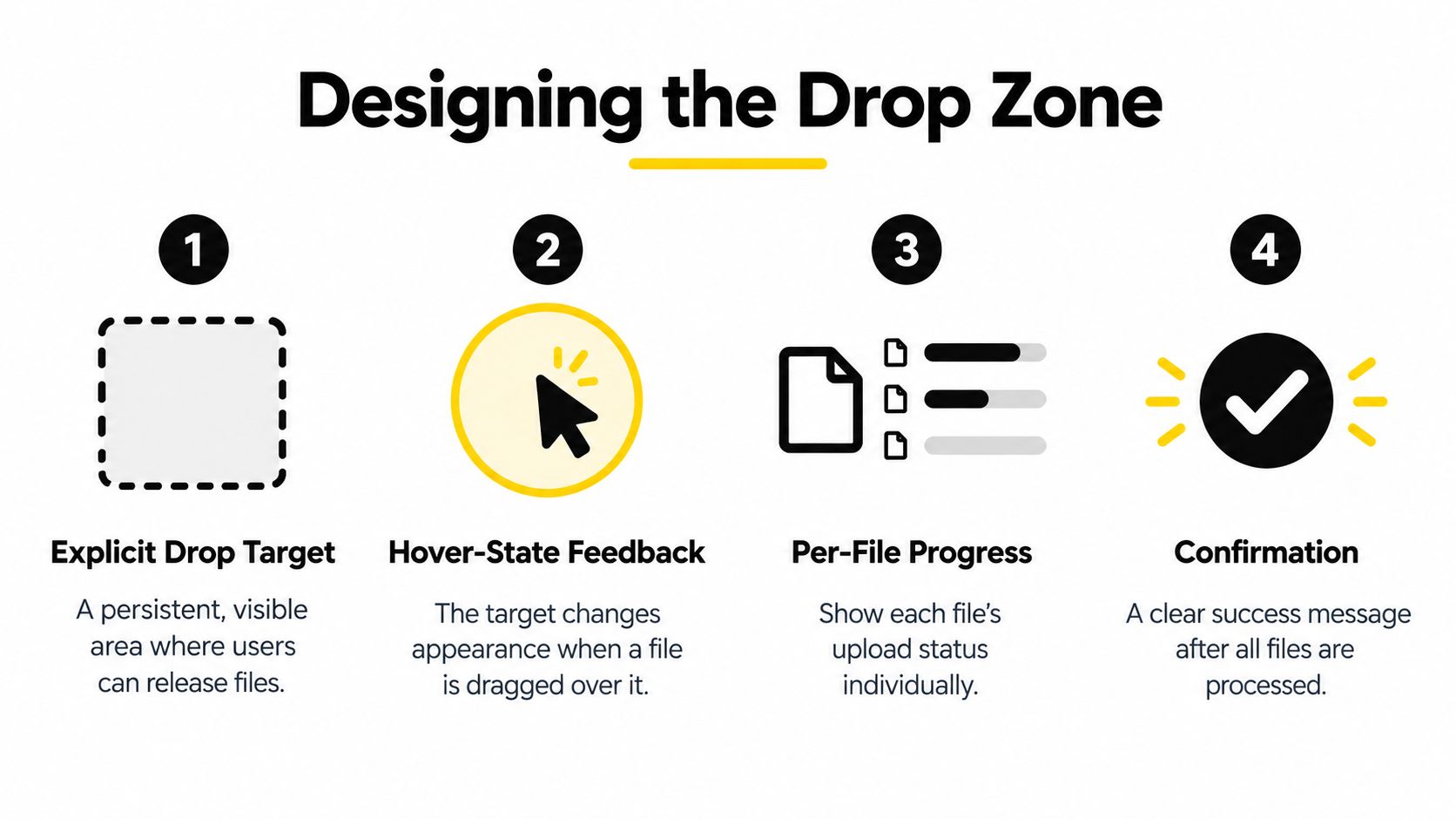
Start with these four design decisions:
Keep the target obvious. Use a persistent, clearly labeled area rather than a small icon that appears only after the user guesses where to drop. It should remain visible while the user selects a matter or reviews the upload screen.
Show a meaningful hover state. When a compatible file is dragged over the target, change its appearance. A border, background tint, or clear highlight tells the user the system recognizes the action. If the file type isn't accepted, don't imply that the drop will work.
Track each file separately. A batch-level spinner can conceal a failed record among successful ones. Show each filename with a status such as pending, uploading, processing, accepted, or needs attention. Give the user a retry option for a failed item without requiring a restart of the whole batch.
Provide a non-drag alternative. Include a browse button that works with keyboard navigation and assistive technology. Some users can't or don't want to drag files, and locked-down devices or touchscreens can make the gesture awkward.
For sensitive records, a useful design review should also consider how the firm preserves the original file and confirms its placement. A guide to protecting injury claim evidence can help frame the broader need to handle evidence deliberately, rather than treating upload as a clerical afterthought.
The one-minute demo test
Ask the vendor to demonstrate a mixed batch, one rejected file, and a retry. Then ask the user to leave the screen and return to confirm whether the upload finished and which case received the records. Watch for clear filenames, visible progress, specific errors, keyboard-accessible controls, and an unmistakable completion message.
If the demo can't show those states, don't accept “the upload is intuitive” as an answer. The interface should help a busy paralegal recover from a mistake, not just make the successful path look smooth.
From Drop to Structured Case Data
The drop is the start of a processing chain. The firm should be able to see what happened at each handoff, from local file selection through validation and into the matter record. Don't let a single “uploaded” label stand in for the whole process.
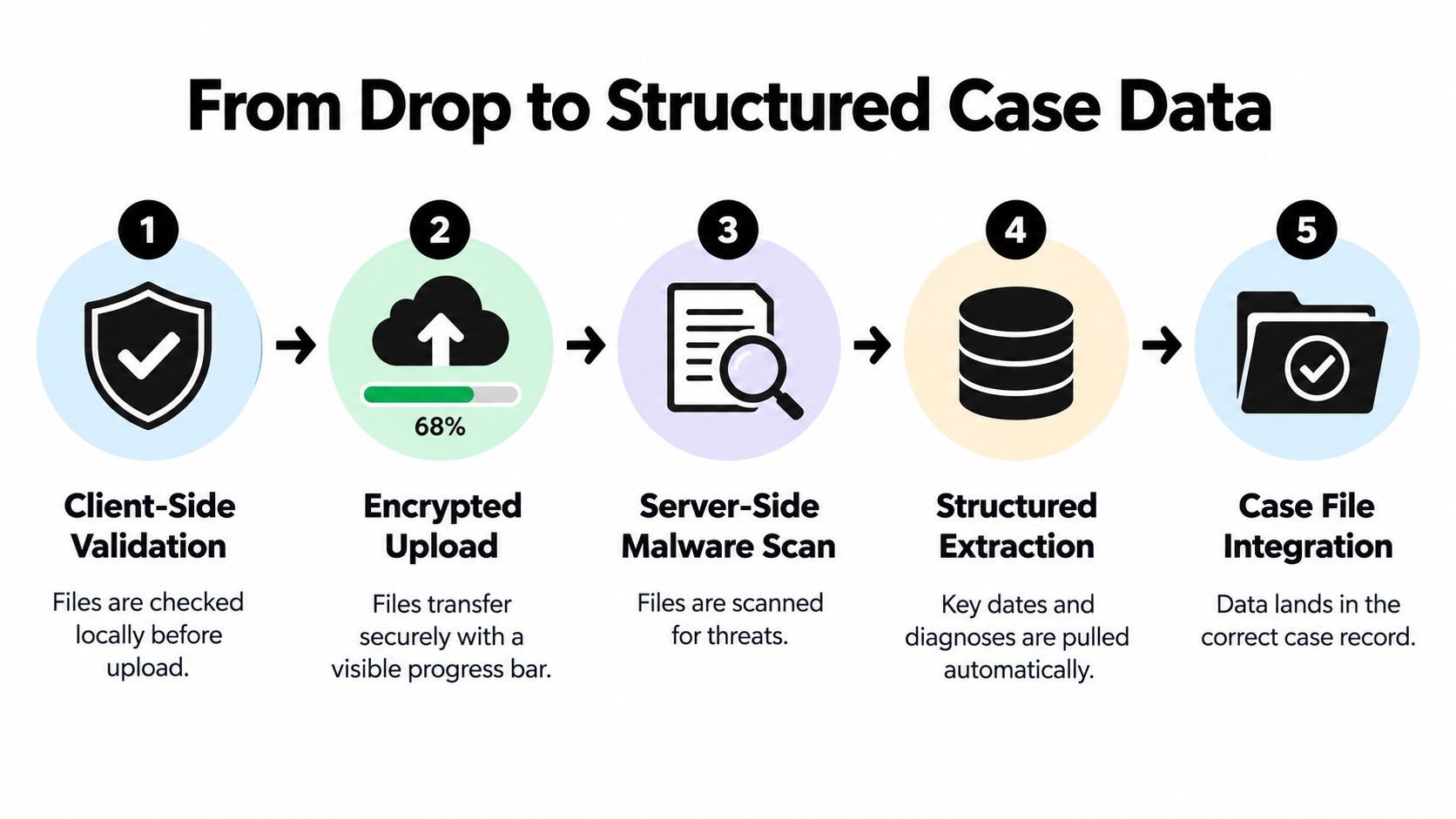
Validate the selection. Before transfer, check file types and size limits, preserve filenames, and flag items the system can't accept. Show which files are selected locally. This is not confirmation that the server has received them.
Transfer with visible status. Upload files through an encrypted connection and show progress for each item. If the connection fails, identify the affected file and offer a targeted retry. Don't make the paralegal guess whether a batch is still moving.
Run server-side checks. After transfer, confirm that the system has received the files, then run file-type validation and malware scanning. The status should distinguish transfer completion from validation and durable storage. For PHI-sensitive work, it should avoid exposing unnecessary patient information.
Extract useful case facts. Once records are available for processing, extraction can identify dates, providers, treatments, diagnoses, and other relevant details. The result should preserve a route back to the source page. A reviewer needs to verify a fact, not trust a clean-looking summary.
Place the output in the correct matter. Store the originals and structured results against the right case, with a visible status and a clear owner for unresolved items. A guide to automated data extraction can help teams think through how document facts become usable information rather than a pile of copied text.
What the paralegal should see
Suppose a paralegal receives a large medical-record batch. The useful outcome isn't merely a folder containing every PDF. It's the original files, an itemized processing status, and a chronological overview of treatment that the reviewer can inspect against its cited source pages. Missing dates, unreadable scans, or conflicting provider names should appear as exceptions, not disappear into a polished summary.
Before calling the process complete, check four distinct states: selected locally, received by the server, validated and stored, and extracted for review. A drop event proves only that the user attempted to submit files. The confirmation should tell the team what was accepted, rejected, or left incomplete.
Here is the processing flow in context:
Permissioning PHI Across the Workflow
Access should follow the work a person needs to do, not the fact that they belong to the firm. Raw records, extracted case facts, and exported drafts aren't interchangeable objects. Each handoff needs an owner, a purpose, and a defined level of access.
A paralegal responsible for intake may need to upload records, review processing errors, and correct provider or date metadata. An attorney may need access to the underlying records and extracted chronology to verify facts and make strategy decisions. Someone preparing a demand draft may need structured information and supporting source references, but not necessarily permission to change intake settings or grant access to other users.
Outside counsel requires a different boundary. Grant access to the specific matter and materials needed for the assignment, use an expiring link or account permission where available, and remove access when the work ends. Avoid sending a broad shared folder just because it's easier to configure.
Two ways the same handoff can go
In the controlled version, a paralegal uploads records to the correct matter, checks the per-file status, and resolves a rejected scan. The attorney reviews the chronology and can trace a disputed treatment date back to the source page. Outside counsel receives only the documents needed for a defined review, with access that expires.
In the careless version, every staff member can browse every matter, the extraction workspace is shared by default, and a generic link stays active after a task is finished. A user can export a draft without seeing whether the data came from a complete record set. The problem isn't just that access is broad. The process gives people no reliable way to know which information they should trust or share.
Permissions should change with the handoff. Don't configure them once and assume they'll fit every stage of the matter.
Review access at intake, extraction, attorney review, export, and external collaboration. A practical user permission management approach should make it easy to identify who can view original records, edit metadata, approve extracted facts, and export case materials. If the system can't distinguish those actions, document the limitation and create a review control around it.
Connecting Intake to Demand Drafts and Case Strategy
A useful intake workflow doesn't end when the files are stored. It ends when verified information reaches the next piece of legal work without forcing staff to re-enter the same facts. That means the firm needs a deliberate handoff from originals to structured data, and from structured data to attorney-reviewed work product.
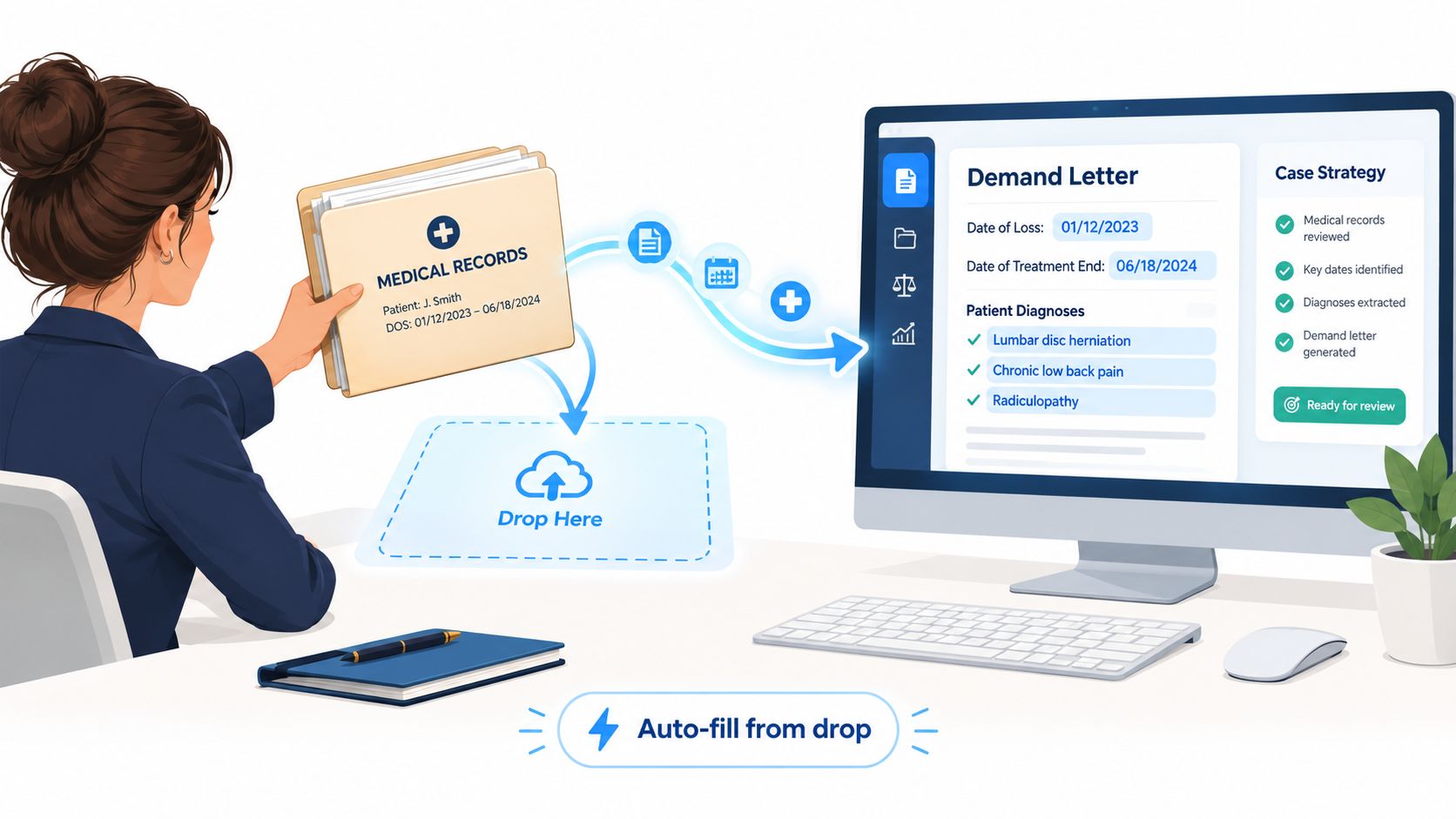
Consider a demand letter in progress. The paralegal uploads records, reviews the extracted chronology, and checks that the providers and treatment dates match the source documents. The drafting workflow can then use that reviewed chronology to organize the medical narrative, surface treatment gaps, and populate a draft with linked support. The attorney spends time evaluating the claim and refining the argument, rather than rebuilding the timeline from scattered PDFs.
That handoff should preserve provenance. Each extracted date, diagnosis, or provider entry should point to the source record and page where it appeared. If two records conflict, the system should flag both versions for human review. If a scan is unreadable or an extraction is uncertain, place it in an exception queue. The system must not quietly choose the cleaner-looking answer and pass it into a demand draft as settled fact.
Make the draft reviewable
The draft should separate verified information from unresolved details. A reviewer ought to see whether a fact came from a source document, was extracted automatically, or was changed by a human. Keep the source record available alongside the relevant chronology entry so the attorney can check context without hunting through an unrelated folder.
Use the same structured facts for related outputs, such as a case chronology or trial-preparation summary, rather than maintaining separate versions that drift apart. Keep a clear source of truth for provider names, dates, and document versions. If someone corrects a fact, record that change and ensure downstream drafts use the approved value.
The difference is simple: an upload-centered process counts files; a case-centered process moves verified information toward a reviewed demand. Ares is one option for PI firms that want to upload records, review extracted medical chronologies and summaries, and use those materials in demand-letter drafting. Whatever platform you choose, judge it by the quality of its handoff and the reviewer's ability to trace a claim back to its source.
When Drag and Drop Is the Wrong Choice
Drag and drop can reduce the effort of moving files into a visible destination, but it isn't automatically faster or safer. In reported task research, one study measured average relocation at 2,410 milliseconds by dragging versus 520 milliseconds by copy and paste, with more visual fixations and more failed or misdirected attempts in the drag condition. Those results concern particular relocation tasks, not every legal upload screen, but they're a useful warning against treating the gesture itself as proof of efficiency. (Reported drag-and-drop task findings)
The practical choice depends on the user and the source. A desktop user submitting a manageable batch to a visible target may prefer dragging. A person handling a very large folder, working on a locked-down device, or using a touchscreen with limited dexterity may need a browse control or a different intake route. Research on touch interaction also found that lowering placement-accuracy requirements reduced errors for participants with varied dexterity and computer experience. (Touch interaction and placement accuracy research)
| Scenario | Best Intake Method | Reason |
|---|---|---|
| A user has a small, selected batch on a desktop | Drag and drop with browse fallback | The target is easy to reach, and the user can see the files before submission. |
| Records arrive in a large folder or recurring export | Folder watch or managed batch import | The process can preserve the folder structure and reduce repeated manual selection. |
| A locked-down device blocks direct dragging from email or a portal | Browse control | The user can save and select permitted files through the available interface. |
| A user relies on keyboard navigation, a screen reader, or mobile access | Accessible browse flow | The workflow doesn't depend on precise pointer movement. |
| Another system already holds structured records | API ingestion | The integration can pass records and metadata without a manual file gesture. |
A firm should measure completion alongside misplacement, duplicate uploads, abandonment, and recovery. A gesture that looks quick in a demo isn't a win if staff must spend time checking what didn't arrive. Keep drag and drop as one route, not the only route.
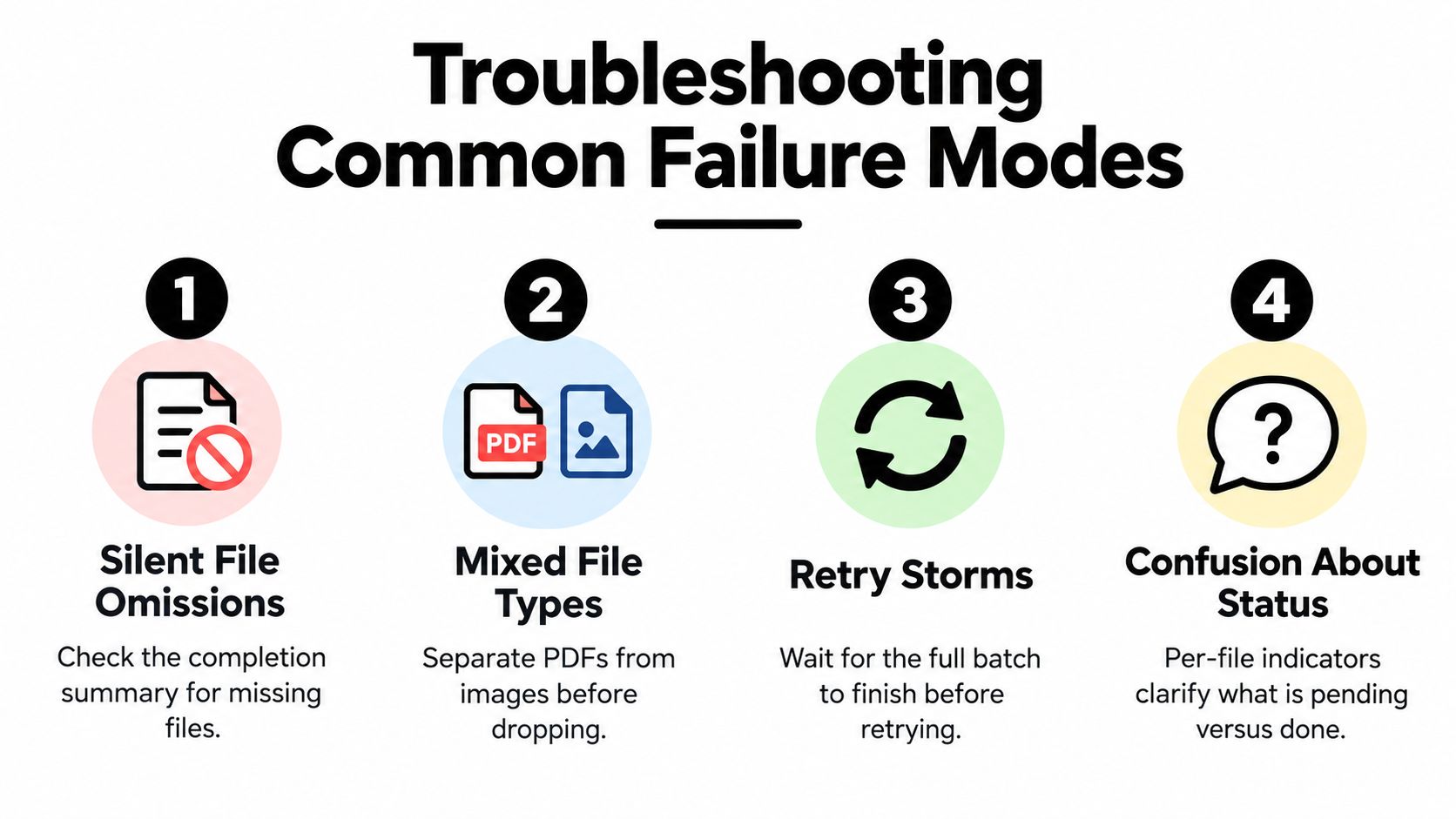
Troubleshooting and Common Failure Modes
When intake breaks, the fix is usually better visibility, not another instruction to “try again.”
- Silent omissions: A batch appears complete, but a file is missing. Require a completion summary that lists every accepted, rejected, and incomplete item.
- Mixed file types: A batch contains a format the system can't process. Validate each file before transfer and identify unsupported items without blocking the rest of the batch unnecessarily.
- Retry storms: Users restart uploads because they can't tell whether a partial failure is still processing. Show per-file states and allow targeted retries only after the original batch reaches a clear status.
- Unclear versions: Staff can't tell which record is current. Preserve filenames and upload history, flag duplicates, and make the active version and its source visible.
Before launch, test encryption in transit and storage, audit logs, duplicate detection, per-file recovery, and rollback or correction procedures. Have staff confirm that a failed file can be retried without losing successful items, and that a corrected metadata entry is reflected in downstream work.
Pilot questions
What if records arrive out of order? Keep the original receipt and upload history, then update the chronology as additional records arrive. Don't treat the first summary as final.
What if extraction disagrees with the attorney's reading? The attorney's review controls the work product. Correct the structured fact, preserve its source, and make the discrepancy visible for future review.
Can we go live if the demo works? Not until staff test incomplete, duplicated, rejected, and inaccessible files, and confirm the recovery path. A polished successful upload is the least demanding test.
Ares gives PI firms a way to upload medical records, review extracted case information, and carry that work into demand drafting. If you're redesigning intake, visit Ares to see how its workflow handles the handoff from raw files to case-ready insights.